# IDEA
# Settings / Preferences
# Appearance & Behavior
# Appearance
- 设置主题
- 设置窗体及菜单的字体及字体大小(一般不设置)
# System Settings
- 🔥Reopen last project on startup:去掉勾选
# Editor
# General
- 🔥Change font size(zoom)...:可以用键盘+鼠标滚轮控制字体大小
- 🔥Show quick documentation...:鼠标悬停后显示文档
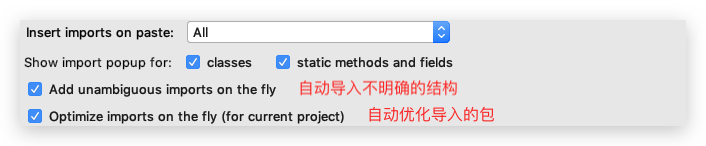
# Auto import
🔥自动导包,选择如下图
# Appearance
- Show line number(默认勾选):显示行号
- Show method separators:显示方法之间的分割线
- Show whitespace:显示空白处的tab或space
# Code Completion
- 🔥去掉Match Case的勾选:忽略大小写
# Editor Tabs
- 🔥去掉Show tabs in one row:标签可多行显示
# Postfix Completion
- 🔥常用的语言的Template,语句自动完成,如sout等。不能修改!但是对于 Live Templates 中也提供的模板,此处的会比 Live Templates 中快一丢丢
# Font
- 🔥字体!大小!行间距!
# Color Scheme
- 🔥设置当前主题的字体、大小、行间距、Comments颜色(区分Line、Block、Doc)、格式等等
- 设置控制台...
- ...
# Code Style
设置代码风格。如tab或space等等
- imports标签下可修改超过指定 import 个数,改为*
- 在 Code Generation 中注释掉 Line commnet at first column。还可添加 space 。
# File and Code Templates
🔥Includes—>File Header:修改类头的文档注释信息
/**
 * TODO
 * @author conanan
 * @create ${YEAR}-${MONTH}-${DAY}
 */
官方文档给的所有常用的预设的变量如下:
${PACKAGE_NAME} - the name of the target package where the new class or interface will be created. ${PROJECT_NAME} - the name of the current project.
${FILE_NAME} - the name of the PHP file that will be created.
${NAME} - the name of the new file which you specify in the New File dialog box during the file creation. ${USER} - the login name of the current user.
${DATE} - the current system date.
${TIME} - the current system time.
${YEAR} - the current year.
${MONTH} - the current month.
${DAY} - the current day of the month.
${HOUR} - the current hour.
${MINUTE} - the current minute.
${PRODUCT_NAME} - the name of the IDE in which the file will be created. ${MONTH_NAME_SHORT} - the first 3 letters of the month name. Example: Jan, Feb, etc. ${MONTH_NAME_FULL} - full name of a month. Example: January, February, etc.
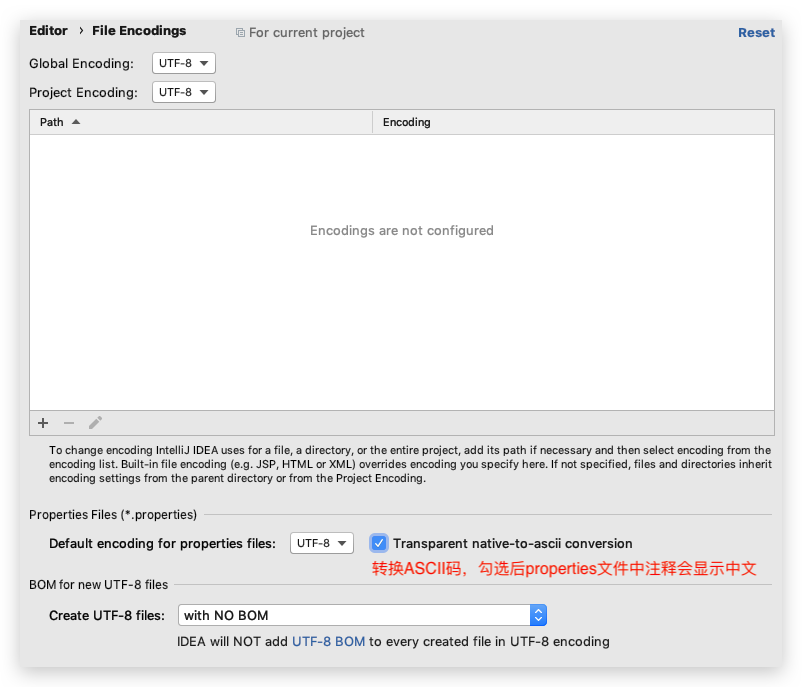
# File Encodings
- 🔥设置项目文件编码,勾选如下图(当前文件可在编辑窗口右下角选择):
# Lieve Templates
目前和 Java 有关的都在 other 和 output 下。可修改!
先定义Template Group,如 Conanan's Templates
定义模板,如方法注释模板(目前版本2019.2.2好像自动生成就是正确的)
# Build,Execution,Deployment
# Build Tools
- 配置构建项目的工具,如Mavne、Gradle等
- Maven
- 🔥Import Maven projects automatically:实时监控项目的 pom.xml 文件,进行项目变动设置
- Automatically download:自动下载源码和文档,不要勾选!
# Complier
- 🔥勾选Build project automatically:自动构建项目,即编译为.class等(只在debugging和非running起效)
- 🔥勾选Compile indenpendent modules in parallel:并行编译独立模块
# Version Control
- 需要安装 Git 客户端(Windows 中需要注意勾选**),并在 IDEA 中配置其路径
- 可以配置 Github
- ...
# Plugins
- Lombok:简化代码
- Jreble:热部署
- Key promoter:IDEA 快捷键提示
- CamelCase:驼峰式命名和下划线命名交替变化。查看 Edit 下的Toggle Camel Case 菜单的快捷键。
- FindBugs-IDEA:代码 Bug 检查
- GsonFormat:把 JSON 字符串直接实例化成类(用在哪?)
# Keymap
可以使用 IDEA 查看keymap reference
psvm:main方法Ctrl+Y:删除光标所在行容器名称.fori:for循环正序遍历数组容器名称.forr:for循环倒序遍历数组容器名称.for:for each遍历
Shift+F6:修改选中的,其他相同的也会改动Ctrl+N:搜索任意类按住Shift:多选按住Alt:竖向多选
.var:直接给变量命名和确定类型Ctrl+Alt+T:surround wity,将代码放入代码块中Ctrl+Alt+B:放在一个类上,可以看到其所有实现类或接口等Ctrl+F12:放在一个类上,可以看到其所有方法Ctrl+H:Type Hierarchy,查看类的阶层
# Debugger
- 设置 Debug 连接方式,默认是 Socket,Windows 中可以选择Shared memory以节省内存。
- Debug调试程序:可以让代码逐行执行,查看代码执行的过程,调试程序中出现的bug
- 使用方式:
- 在行号的右边,鼠标左键单击,添加断点(每个方法的第一行,哪里有bug添加到哪里)
- 右键,选择Debug执行程序,程序就会停留在添加的第一个断点处
- 执行程序:
- f8:逐行执行程序
- f7:进入到方法中
- shift+f8:跳出方法
- resume program:跳到下一个断点,如果没有下一个断点,那么就结束程序
- ctrl+f2:退出debug模式,停止程序
- Console:切换到控制台
# Other
- 右键标签后,选择Split Vertically / Horizontally 即可垂直或水平分割展示
- IDEA的索引若是失效或有问题,可以点击 File—>Invalidate and Restart清空重置,但是会丢失 Local History,可以先备份
# View
# Appearance
- 🔥Toolbar:打开工具栏(方便前进后退,打开Settings / Preferences)
- 🔥Tool Window Bars:打开侧边工具(如project、database、maven等)
# Navigate
- Type Hierarchy(
Ctrl+H或Control+H):查看类的阶层
VSCode →